本页还没有译文
本页 19 段还没译成简体中文,下面显示的是英文原文。Getting Started
还没翻译译自英文(supabase.com)本页 19 段都还没译
Before you start
Depending on whether a Supabase organization is managed and billed through the AWS Marketplace or directly through the Supabase platform, there are differences. To help you make an informed decision about which approach is better suited for your needs, you can find an overview of these differences in the table below.
| Feature/Aspect | Managed via AWS Marketplace | Managed directly via Supabase platform |
|---|---|---|
| Available Plans | Pro, Team, Enterprise | Free, Pro, Team, Enterprise |
| Mid-cycle downgrades | No | Yes |
| Cost Control | Spend Cap not available | Spend Cap available |
| Downgrade Behaviour | If a downgrade to the Free Plan causes you to exceed the free projects limit, all projects will be paused. | If a downgrade to the Free Plan causes you to exceed the free projects limit, you have the option to prevent pausing by transferring projects. |
| Invoicing | Separate invoices, one for fixed costs and one for usage costs | One invoice for both fixed costs and usage costs |
Purchase Supabase through the AWS Marketplace
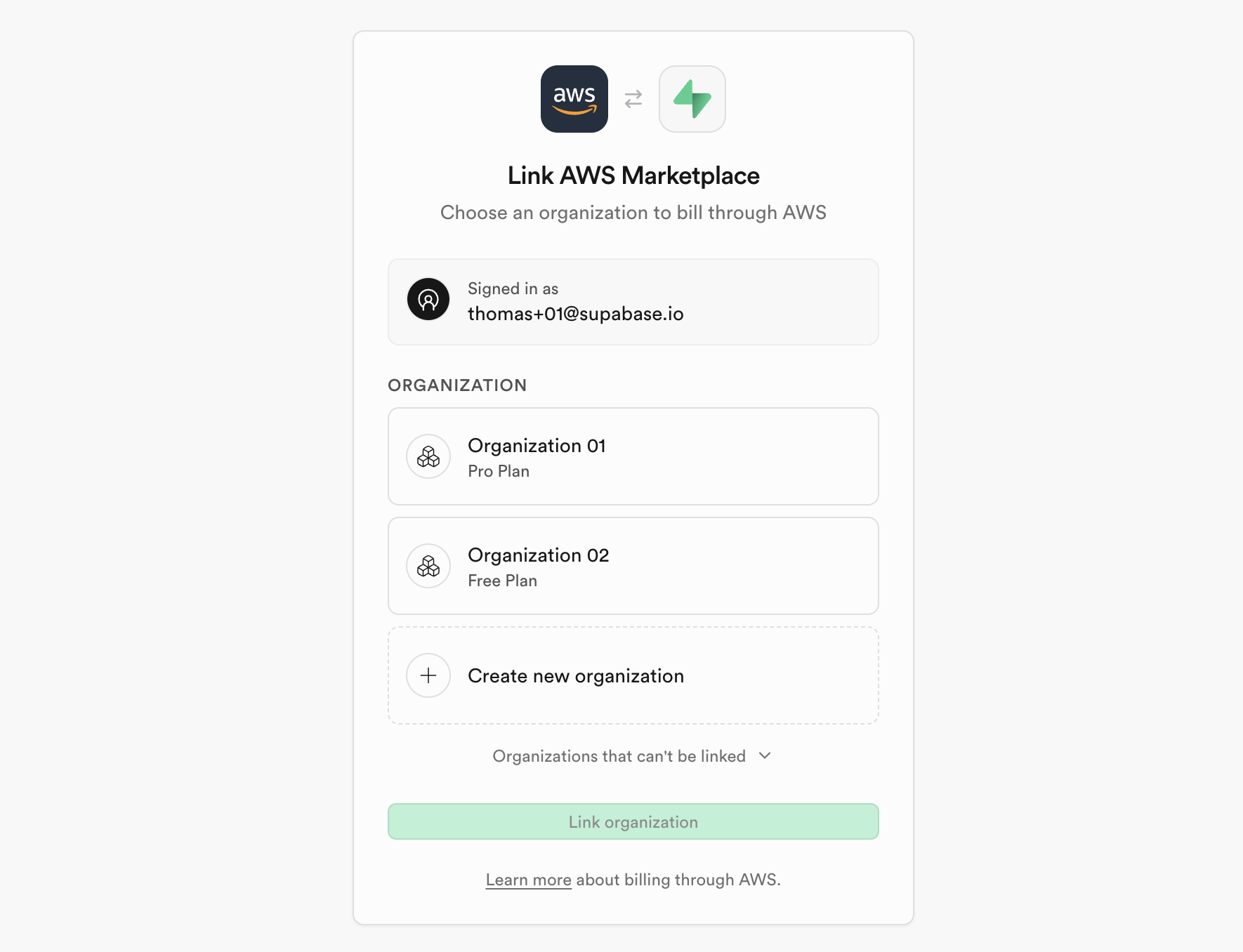
Purchasing Supabase through the AWS Marketplace involves two steps. First, you purchase the corresponding subscription on the marketplace. Then, to complete the setup, you must link this subscription to a Supabase organization on the Supabase platform.
For more details on completing the setup and what it means to link an organization, see our Account Setup guide.
-
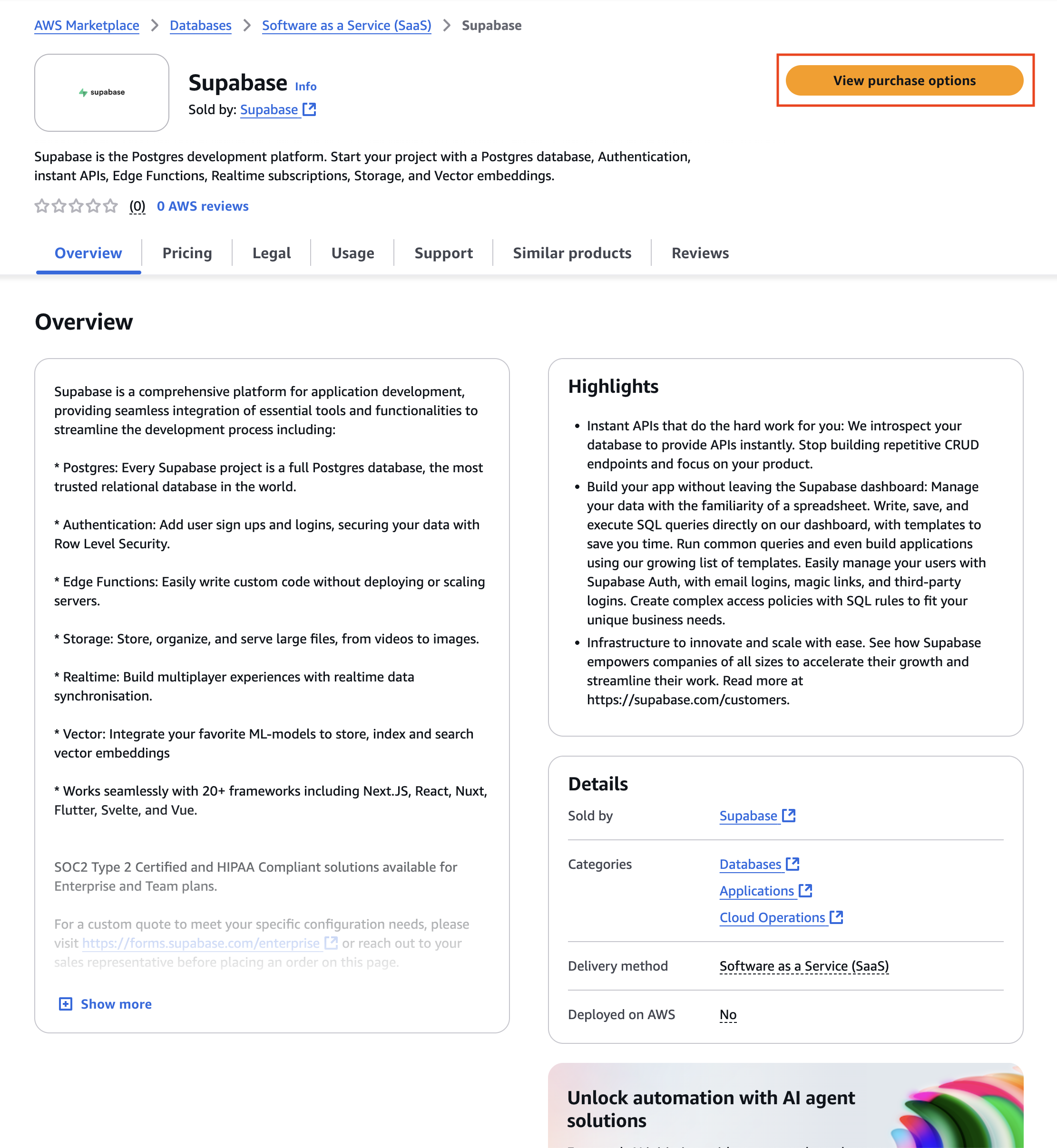
Go to the AWS Marketplace
Go to the Supabase product page on the AWS Marketplace and click "View purchase options".
-
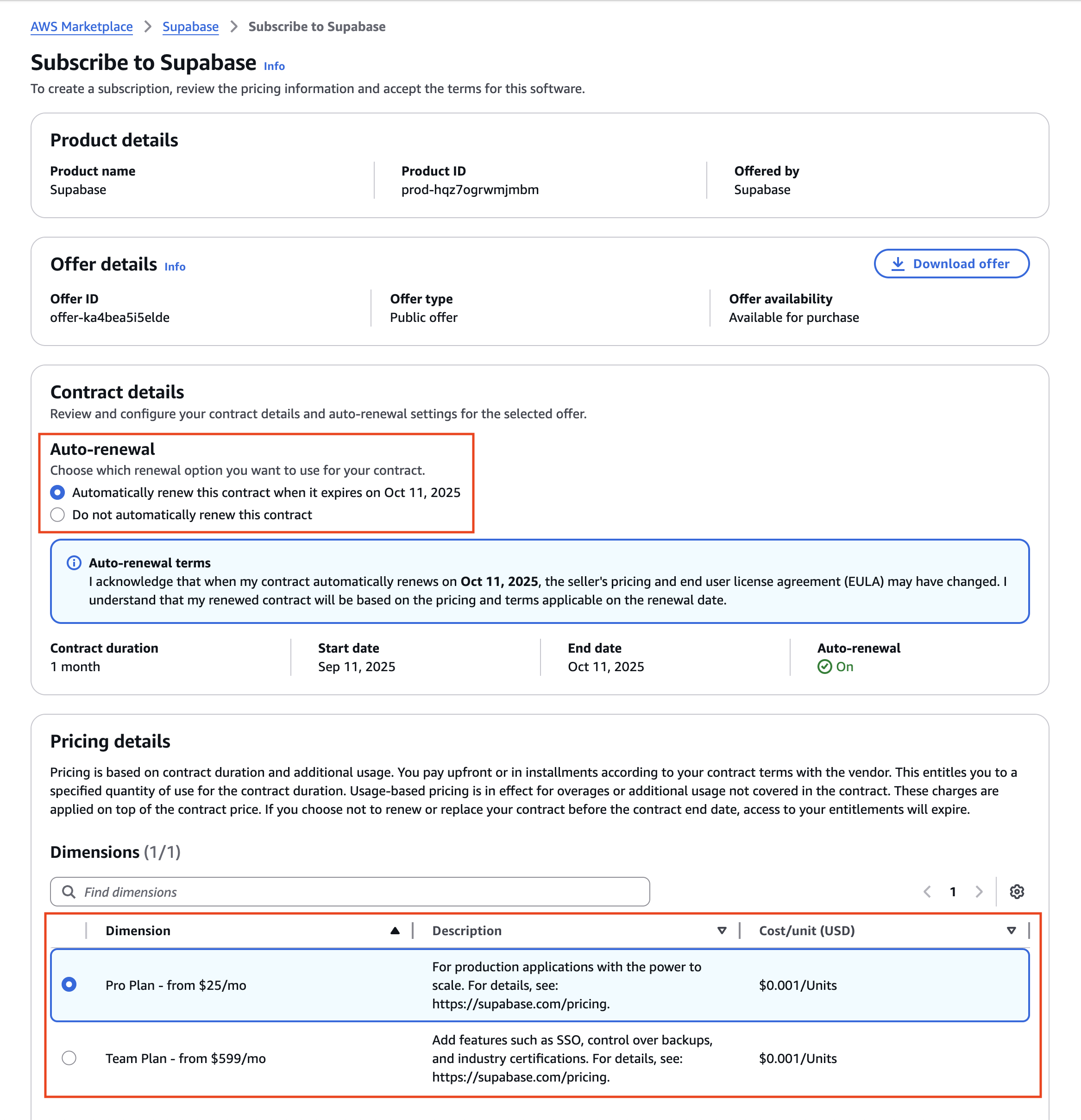
Configure the subscription
Select the desired plan (Pro Plan or Team Plan) and configure whether the subscription should automatically renew after one month.
Danger
Disabling auto-renewal means that the subscription will be downgraded to the Free Plan after one month.
If the downgrade causes you to exceed the free projects limit, all projects within the organization will be paused. We do not make the decision about which projects continue to run and which are paused. You must then decide which projects you want to keep active and manually reactivate them through the Supabase dashboard.
-
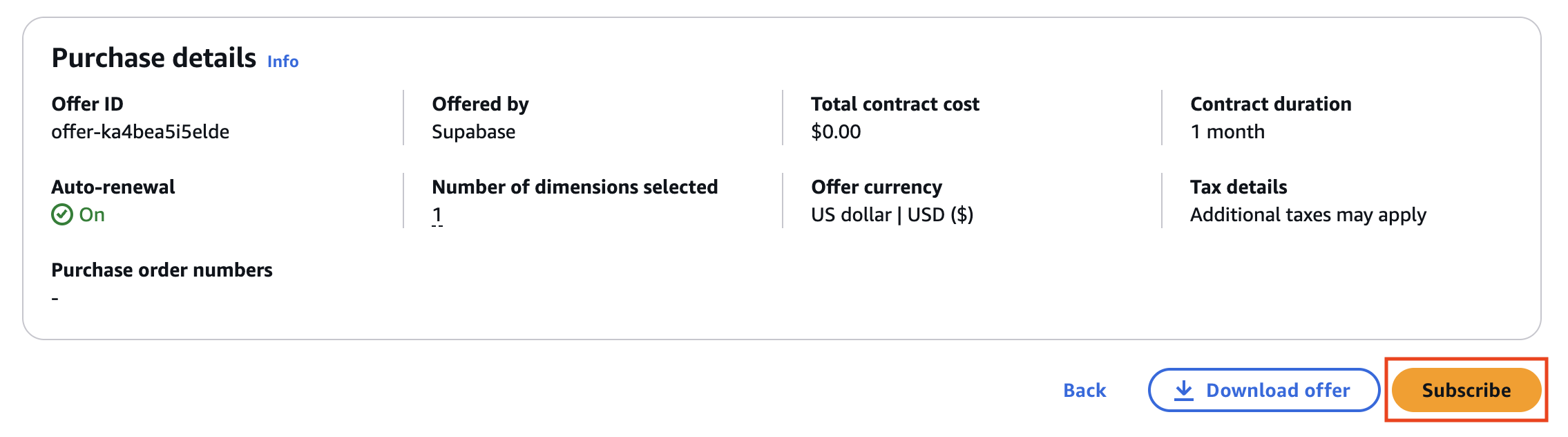
Subscribe
Click "Subscribe" at the bottom of the page.
-
Go to the Supabase platform
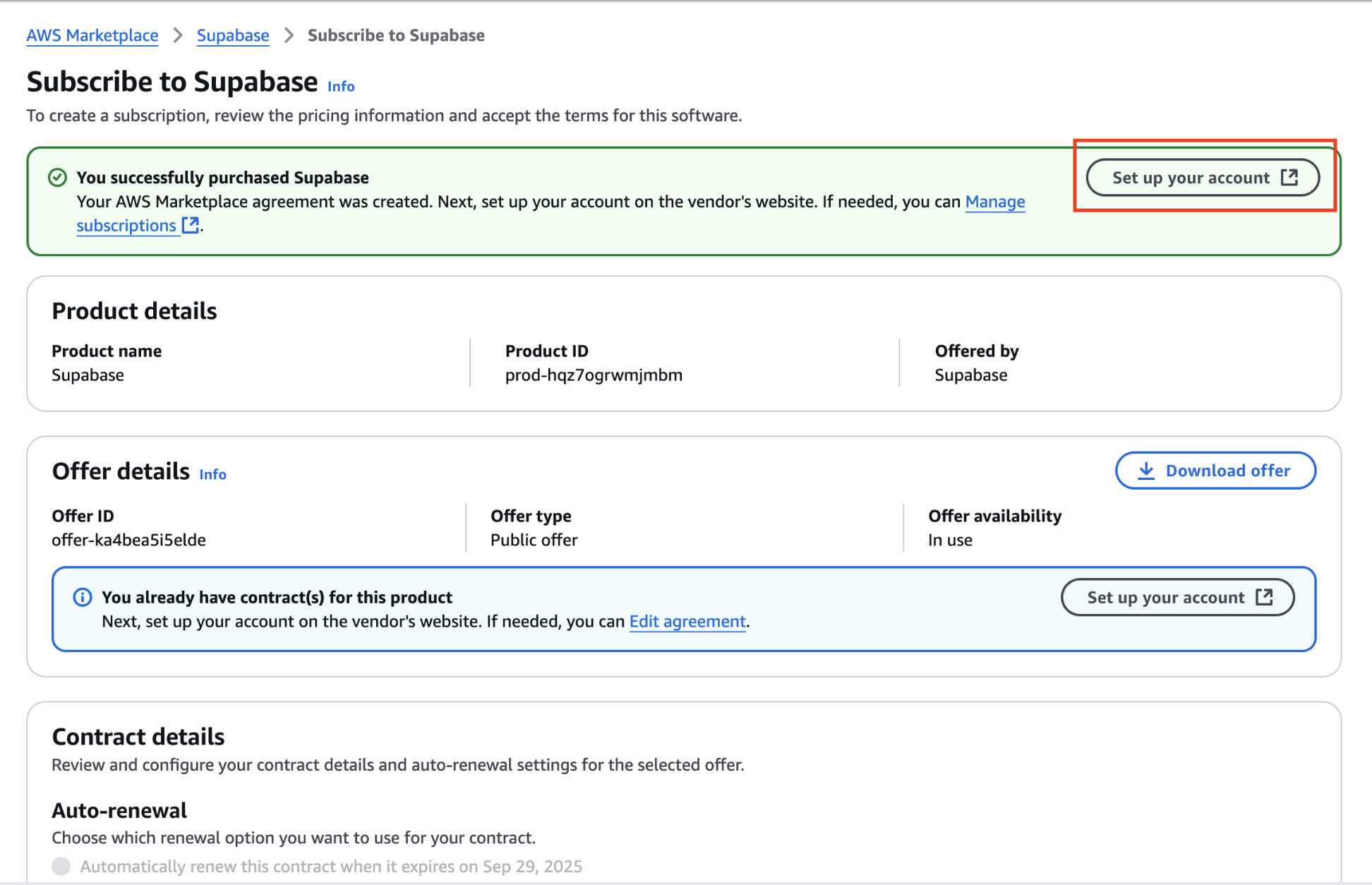
After the payment has been confirmed and your marketplace subscription is active, click "Set up your account" to be redirected to the Supabase platform.
-
Complete the setup on the Supabase platform
Complete the setup by linking a Supabase organization to the AWS Marketplace subscription.