本页还没有译文
本页 26 段还没译成简体中文,下面显示的是英文原文。Learn how to integrate Supabase with LlamaIndex, a data framework for your LLM applications.
还没翻译译自英文(supabase.com)本页 26 段都还没译
This guide will walk you through a basic example using the LlamaIndex SupabaseVectorStore.
Project setup
To create a new Postgres database, start a new Project in Supabase:
- Create a new project in the Supabase dashboard.
- Enter your project details. Remember to store your password somewhere safe.
Your database will be available in less than a minute.
Finding your credentials:
You can find your project credentials on the dashboard:
- Database connection strings: Direct and Pooler connection details including the connection string and parameters.
- Database password: Reset database password here if you do not have it.
- API credentials: your serverless API URL and publishable keys.
Launching a notebook
Launch our LlamaIndex notebook in Colab:

At the top of the notebook, you'll see a button Copy to Drive. Click this button to copy the notebook to your Google Drive.
Fill in your OpenAI credentials
Inside the Notebook, add your OPENAI_API_KEY key. Find the cell which contains this code:
import os
os.environ['OPENAI_API_KEY'] = "[your_openai_api_key]"
Connecting to your database
Inside the Notebook, find the cell which specifies the DB_CONNECTION. It will contain some code like this:
DB_CONNECTION = "postgresql://<user>:<password>@<host>:<port>/<db_name>"

# create vector store client
vx = vecs.create_client(DB_CONNECTION)
Replace the DB_CONNECTION with your own connection string. You can find the connection string on your project dashboard by clicking Connect.
Note
SQLAlchemy requires the connection string to start with postgresql:// (instead of postgres://). Don't forget to rename this after copying the string from the dashboard.
Note
You must use the "connection pooling" string (domain ending in *.pooler.supabase.com) with Google Colab since Colab does not support IPv6.
Stepping through the notebook
Now all that's left is to step through the notebook. You can do this by clicking the "execute" button (ctrl+enter) at the top left of each code cell. The notebook guides you through the process of creating a collection, adding data to it, and querying it.
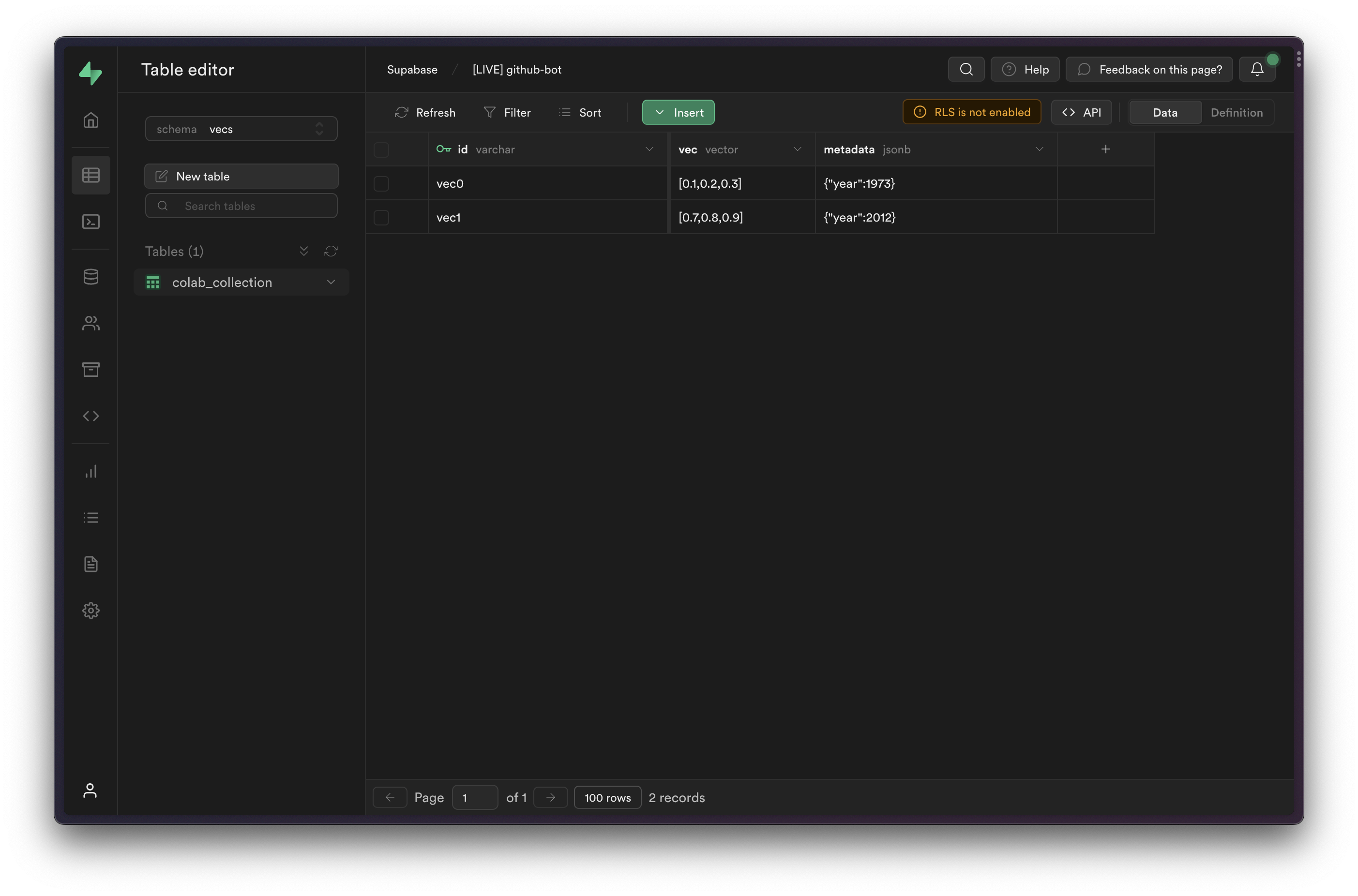
You can view the inserted items in the Table Editor, by selecting the vecs schema from the schema dropdown.