本页还没有译文
本页 18 段还没译成简体中文,下面显示的是英文原文。Connecting with DBeaver
还没翻译译自英文(supabase.com)本页 18 段都还没译
If you do not have DBeaver, you can download it from its website.
-
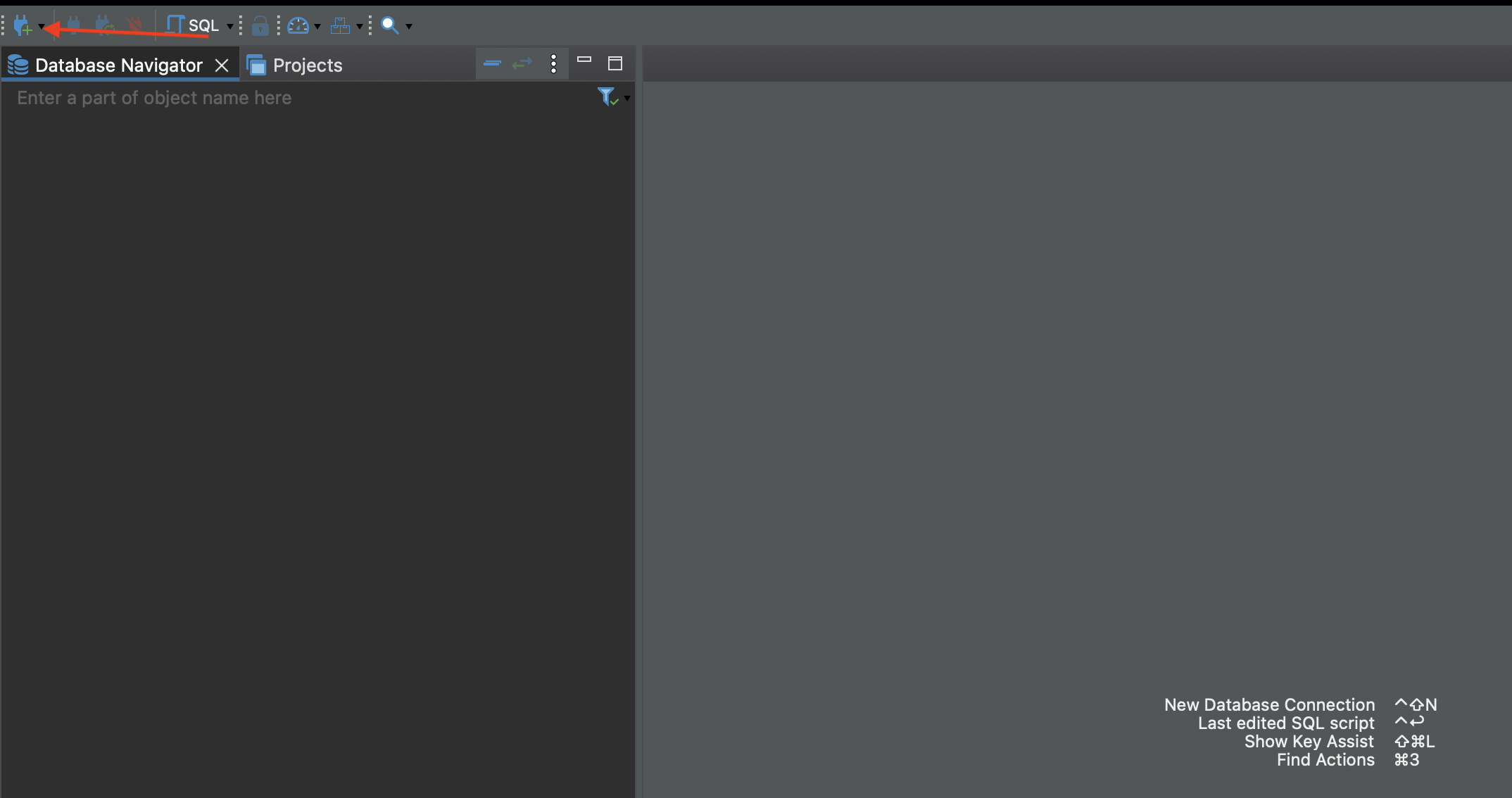
Create a new database connection
Create a new database connection
-
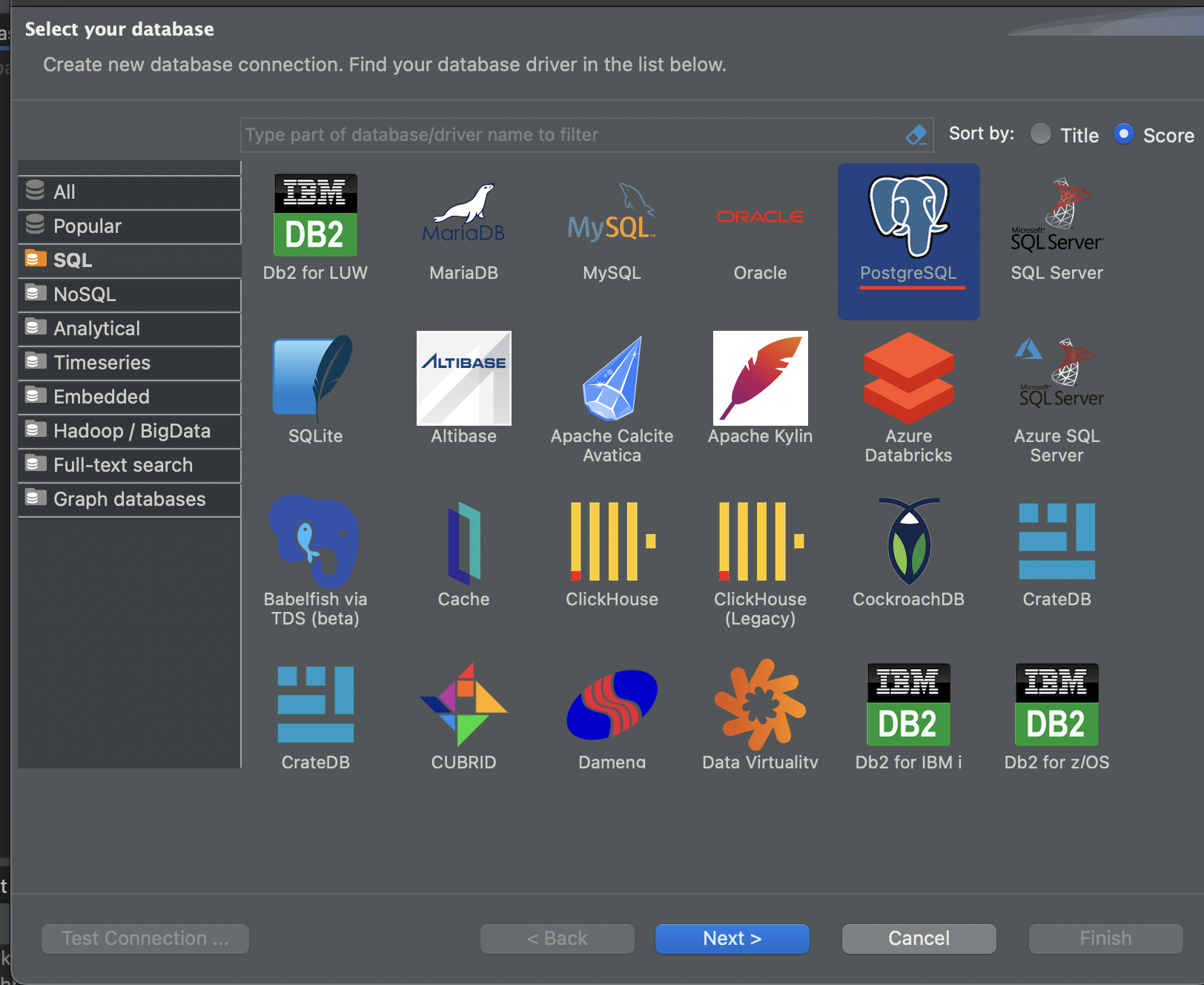
Select PostgreSQL
-
Get Your Credentials
On your project dashboard, click Connect, note your session pooler's:
- host
- username
You will also need your database's password. If you forgot it, you can generate a new one in the settings.
Note
If you're in an IPv6 environment or have the IPv4 Add-On, you can use the direct connection string instead of Supavisor in Session mode.

-
Fill out credentials
In DBeaver's Main menu, add your host, username, and password

-
Download certificate
In the Database Settings, download your SSL certificate.

-
Secure your connection
In DBeaver's SSL tab, add your SSL certificate

-
Connect
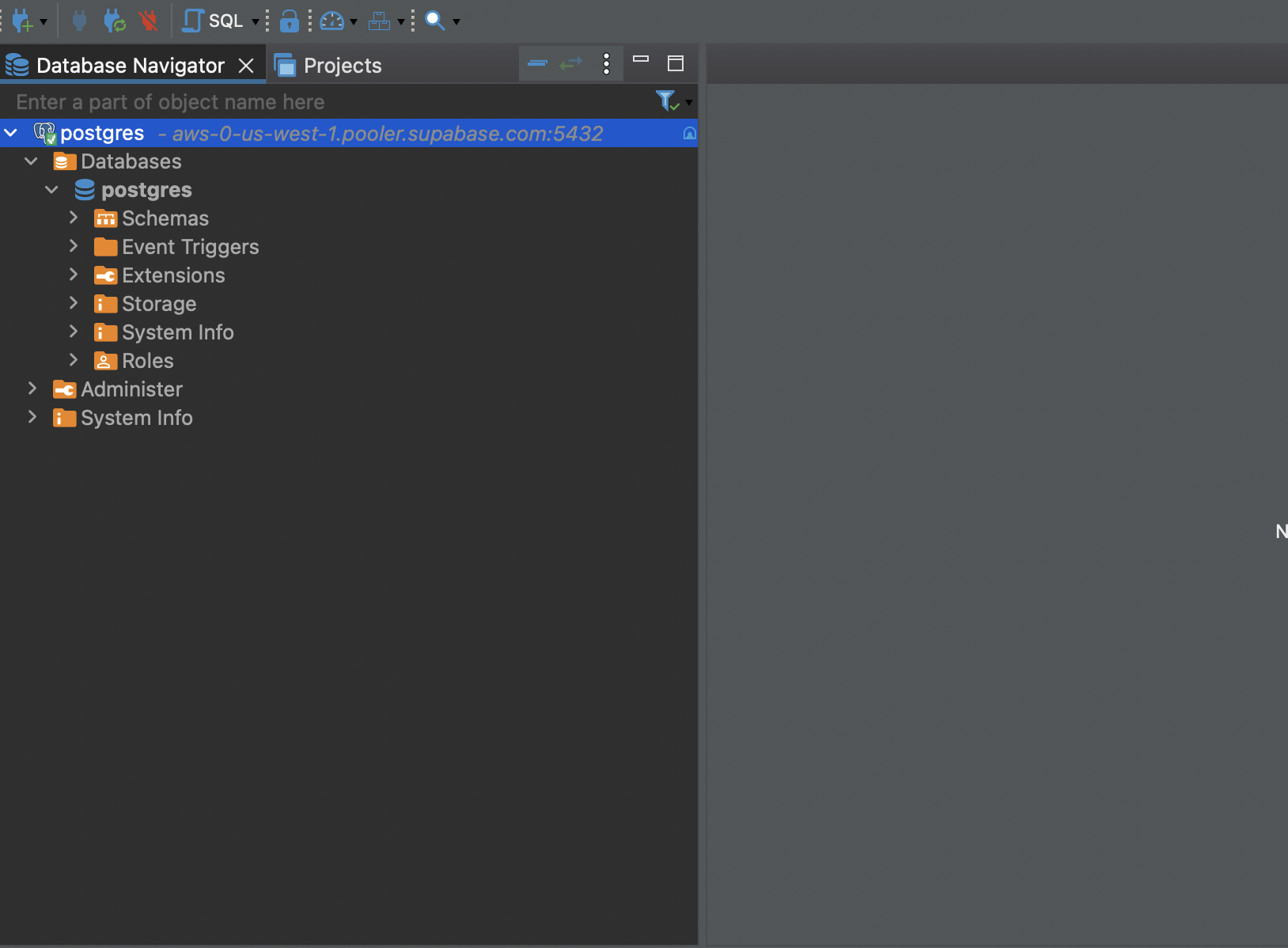
Test your connection and then click finish. You should now be able to interact with your database with DBeaver